How to use Nefario.
From creating your account to reading your first trade — every screen, step by step, with real screenshots of the platform. Ten minutes to read; you will know exactly what the bot does and how to drive it.
User Guide
Read this first. Nefario is software that makes your trading easier. It is not financial advice, it does not hold your money, and it guarantees nothing. Today it trades a paper account — simulated capital, real market data, real AI decisions. Every trading decision and every loss is yours alone.
- 1 What Nefario is
- 2 Create your account
- 3 Verification & approval
- 4 Your dashboard
- 5 Configuration (do this first)
- 6 The trading desks
- 7 How a decision is made
- 8 Positions & your controls
- 9 Alerts
- 10 Daily limits & cost
- 11 FAQ
1. What Nefario is — in one minute
Nefario watches a fixed set of crypto markets (BTC, ETH, SOL, HBAR, THETA on Binance USDT-M perpetual data) around the clock. For every market it runs two independent lanes:
- Swing lane — one look per hour, holds for hours to a day, wider stops and targets.
- Scalp lane — a look every 15 minutes (and instantly on a rapid move), tighter stops, quicker exits.
Each look is a committee: our own deterministic Market Intelligence builds a factual market report (structure, volume profile, liquidity, order flow, session context); a Bull analyst and a Bear analyst (AI models) each argue their strongest case from that same report; a Final Judge (AI) decides LONG, SHORT or WAIT; then our deterministic Risk Engine sizes the trade and can still refuse it. Only then does a paper order exist.
Your account is your own. Your committee runs on your AI keys, under your daily limits, into your paper book, with your alerts. Nothing is shared with, mirrored from, or read by any other account.
2. Create your account
- Open https://bot.iamhaidershah.com/register. Enter your name, your email (this is your login) and a password of at least ten characters with letters and numbers.
- Under the risk notice, press Read → next to Terms & Conditions. The document opens on the page. Scroll to the very end — only then does the I have read this button unlock. Press it.
- Do the same for the Privacy Policy.
- Once both show Read ✓, the acceptance box unlocks. Tick it and press Create account.
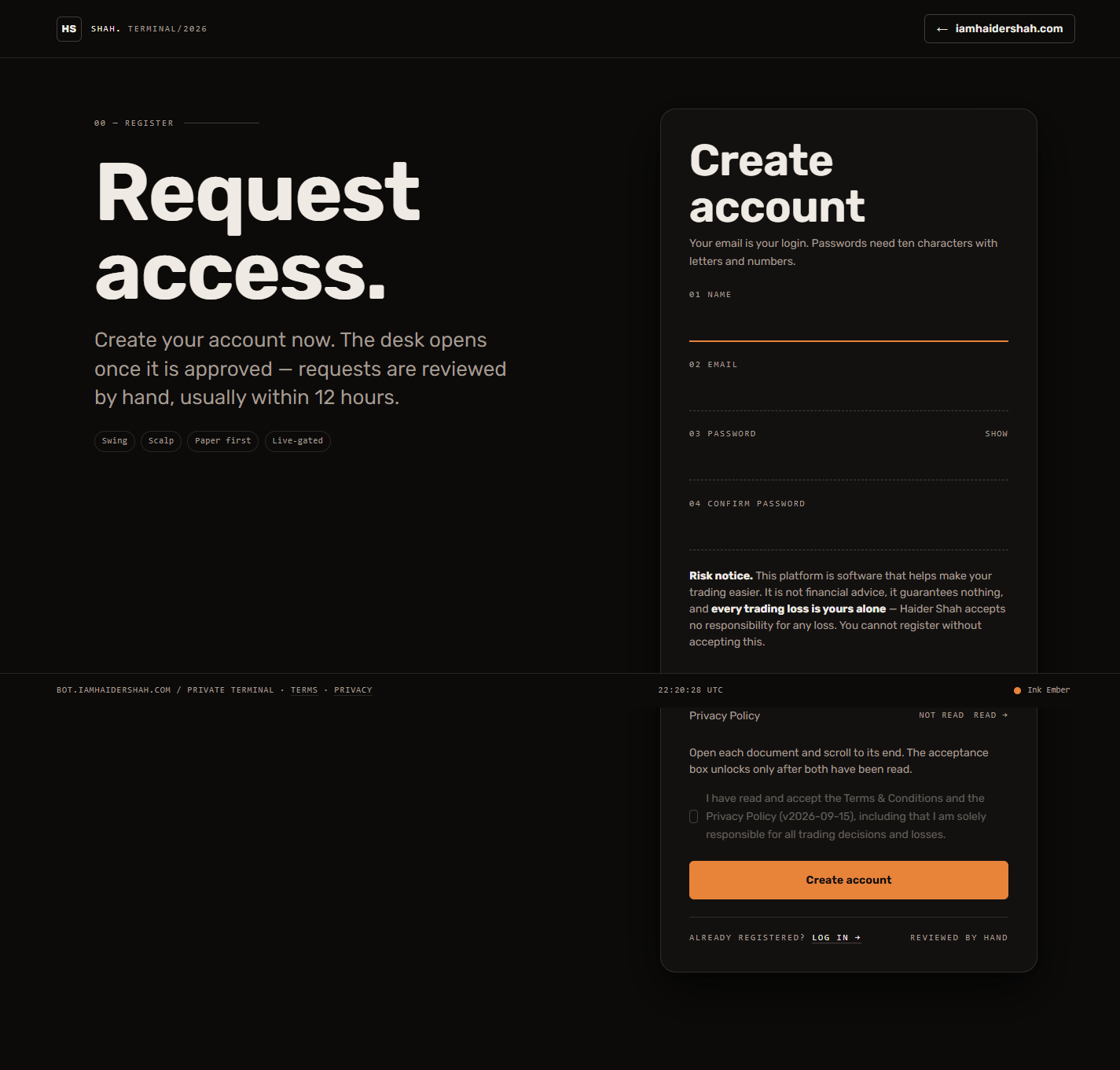
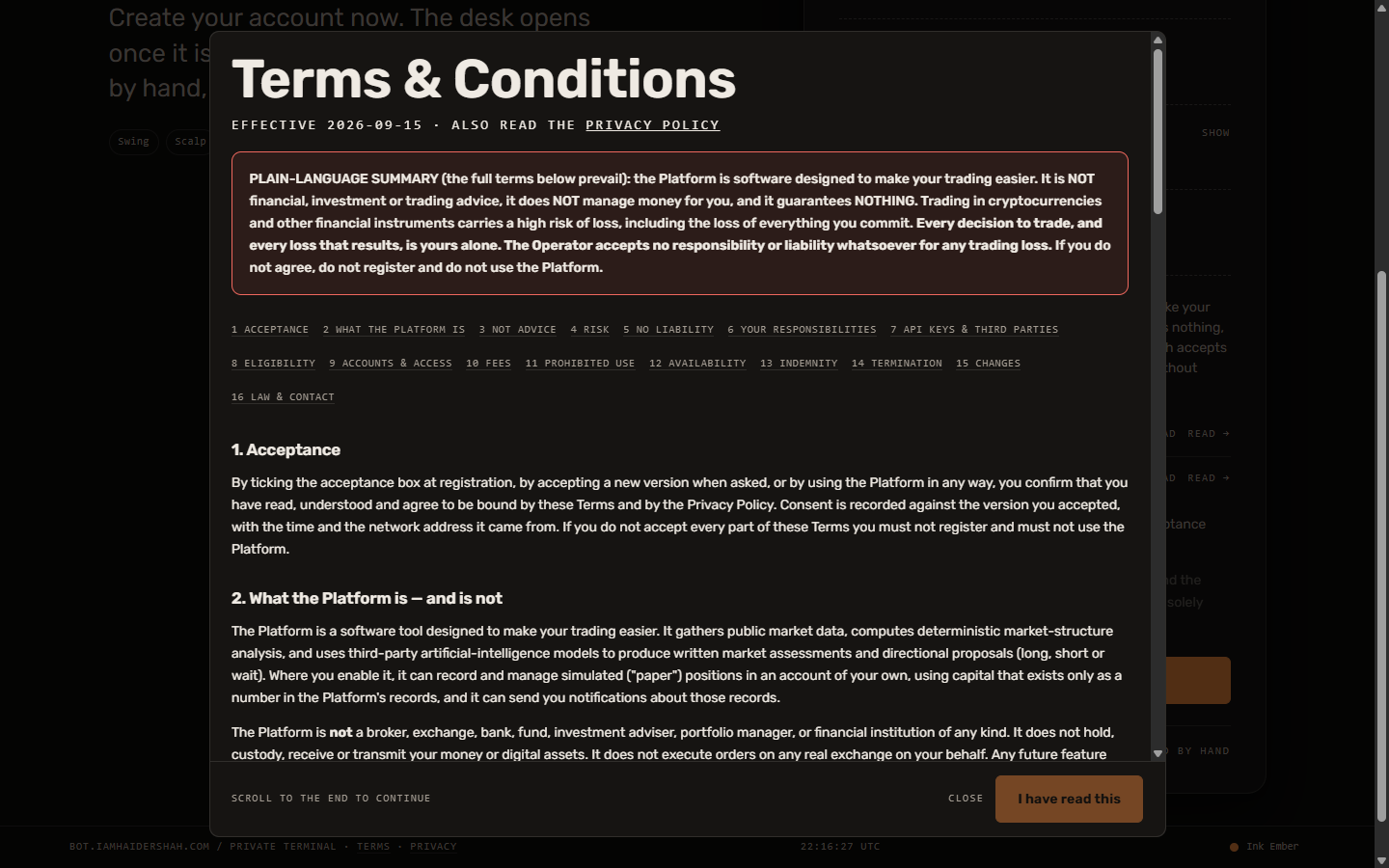
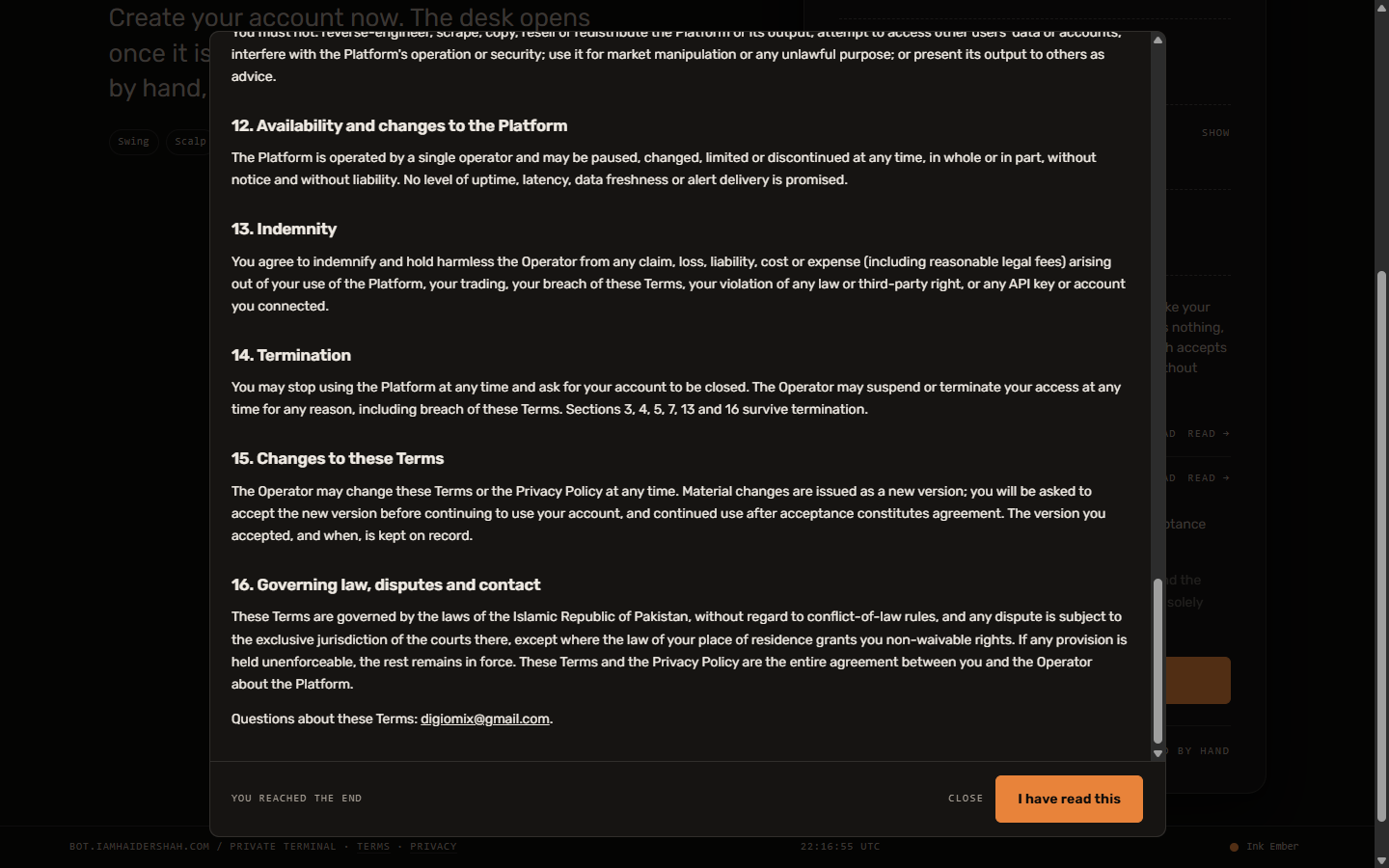
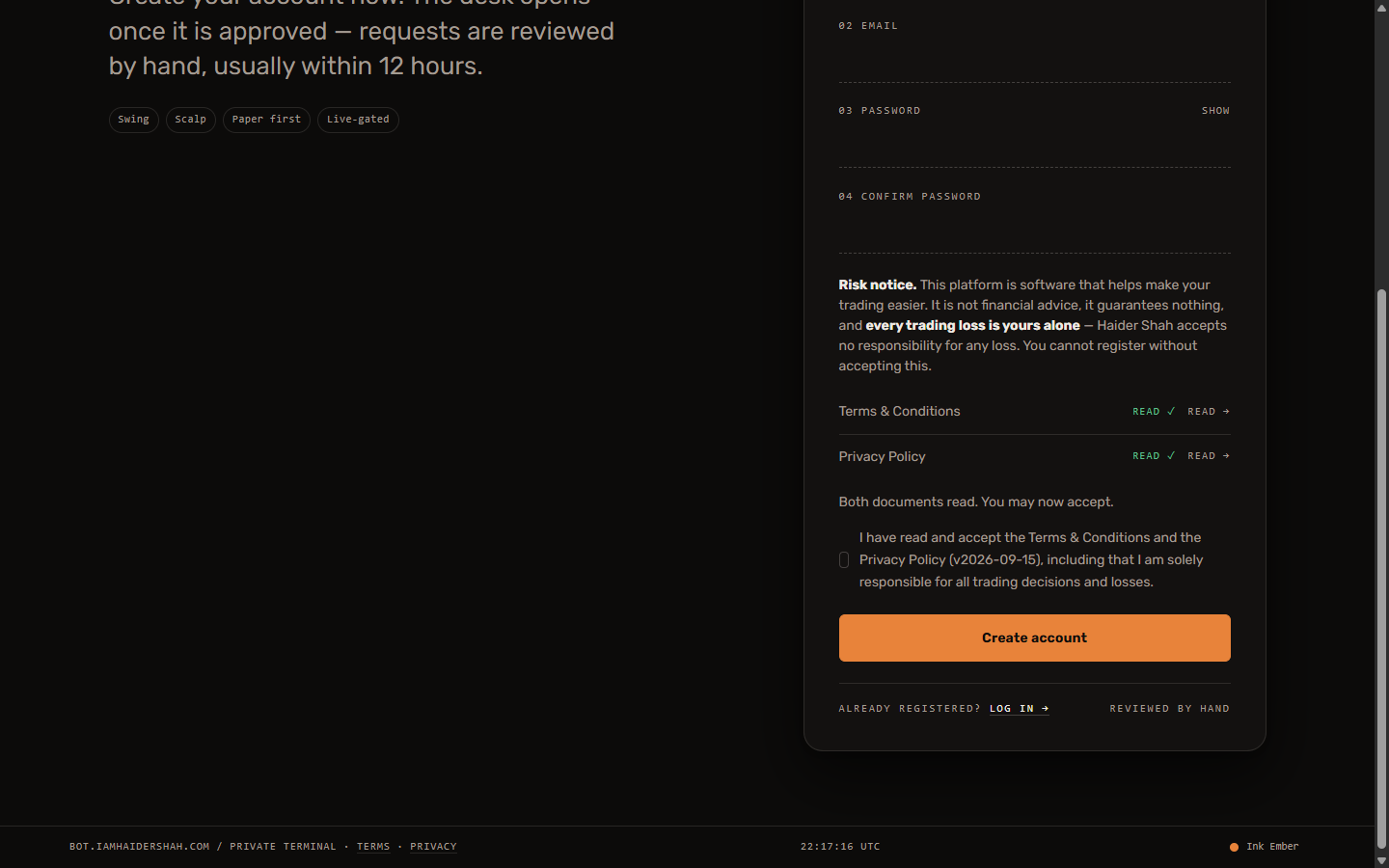
You cannot register without reading and accepting. This is deliberate: the platform records the version you accepted, when, and from where.
3. Verification and approval
- Email code. We send a code to your email. Enter it on the next screen.
- Follow us. Confirm the one-time follow step shown to you.
- Approval. Every account is reviewed by hand — usually within 12 hours. Until then you see a “pending approval” page. You will be able to log in as soon as it is approved.
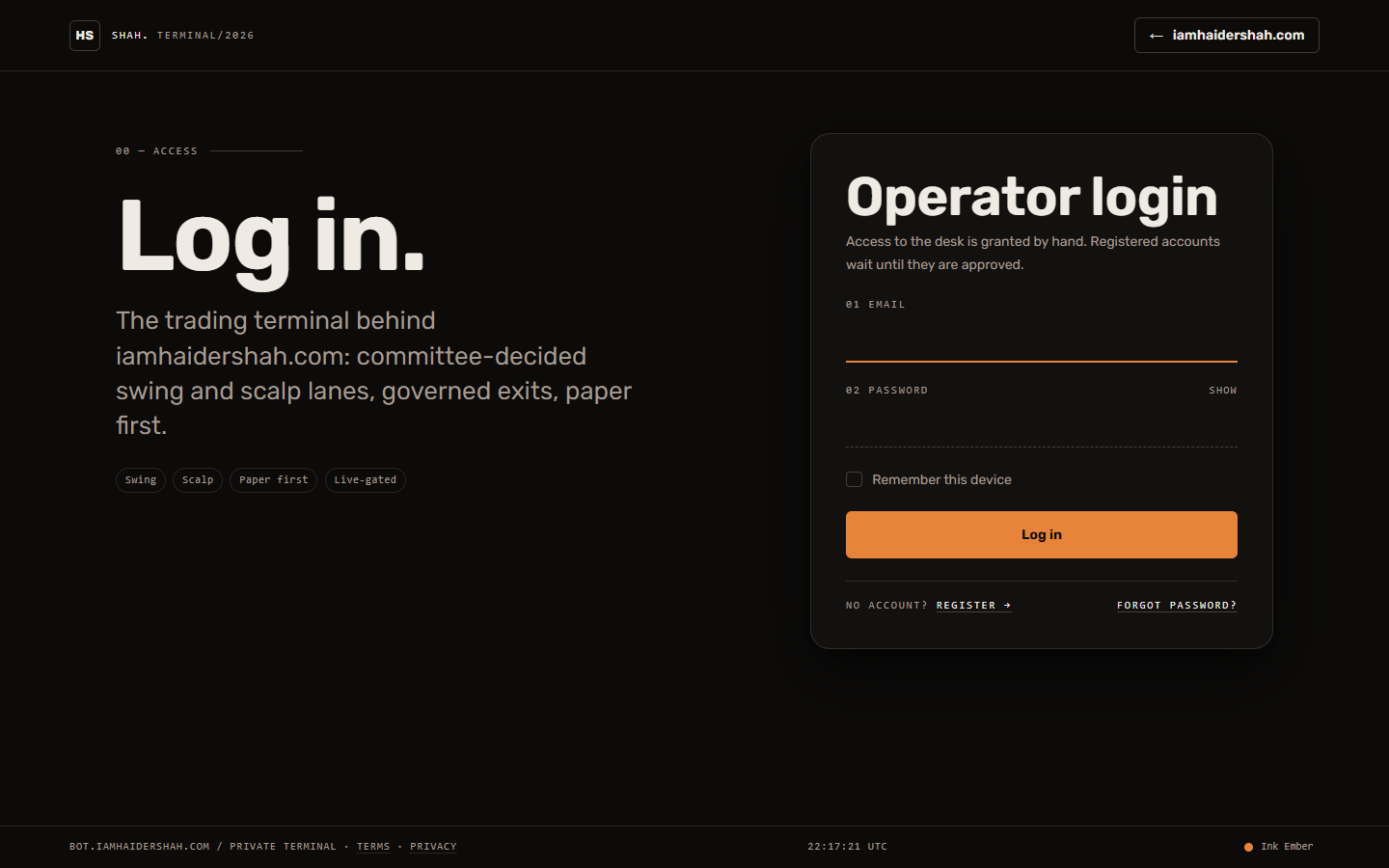
- Log in at https://bot.iamhaidershah.com/login with your email and password.
4. Your dashboard
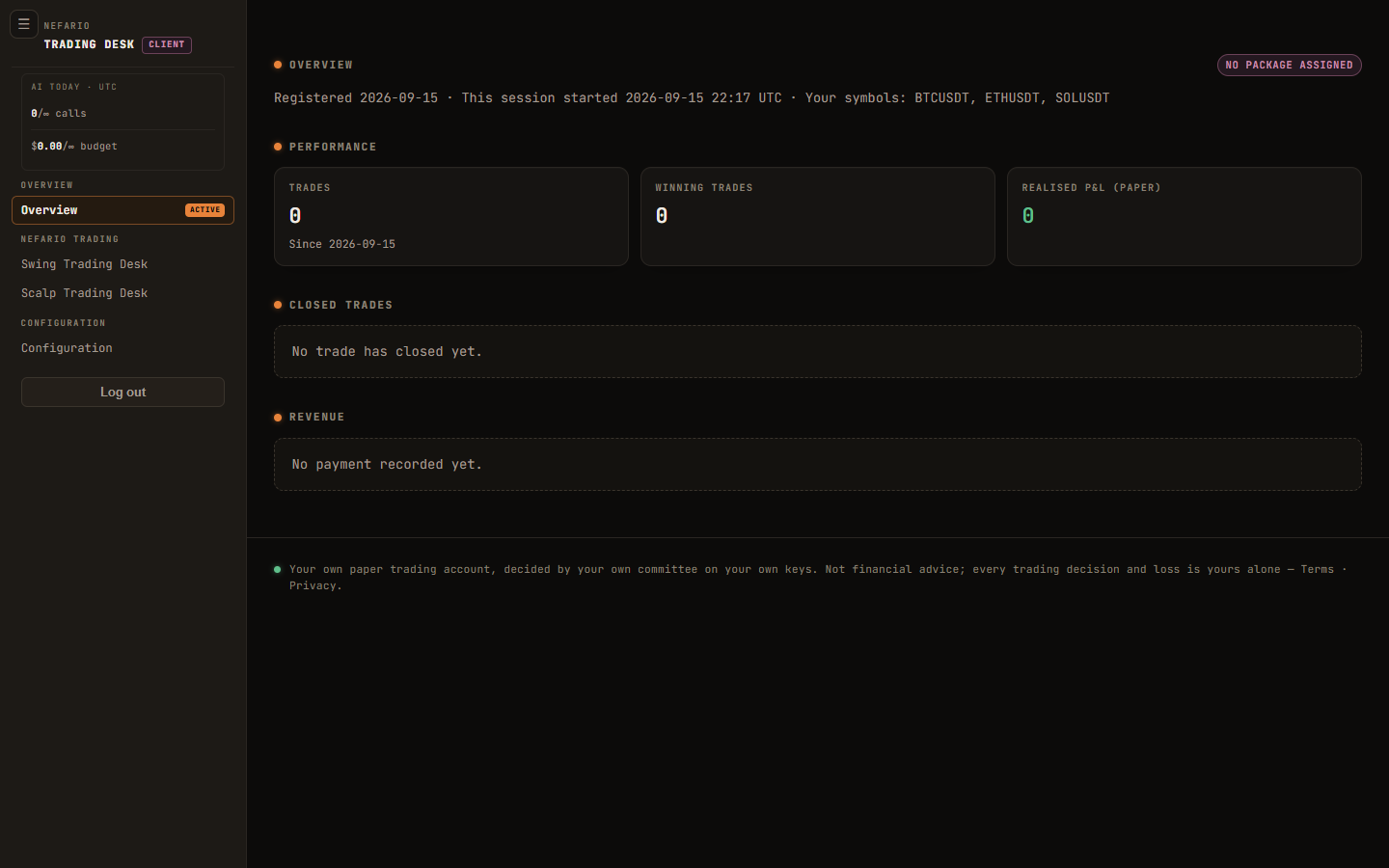
After login you land on Overview. The left sidebar is the same on every page:
- AI today · UTC — your own AI calls and spend today against the daily limits you set. Resets at midnight UTC. Shows ∞ until you set a limit; turns red and says BLOCKED when a limit is reached.
- Overview — performance since approval (trades, wins, realised paper P&L), your closed trades, and your payment history.
- Swing Trading Desk / Scalp Trading Desk — the two live desks (section 6).
- Configuration — your keys, models, limits and alert channels (section 5).
5. Configuration — do this first
Your committee cannot run until it has an AI key to run on. Open Configuration and work top to bottom:
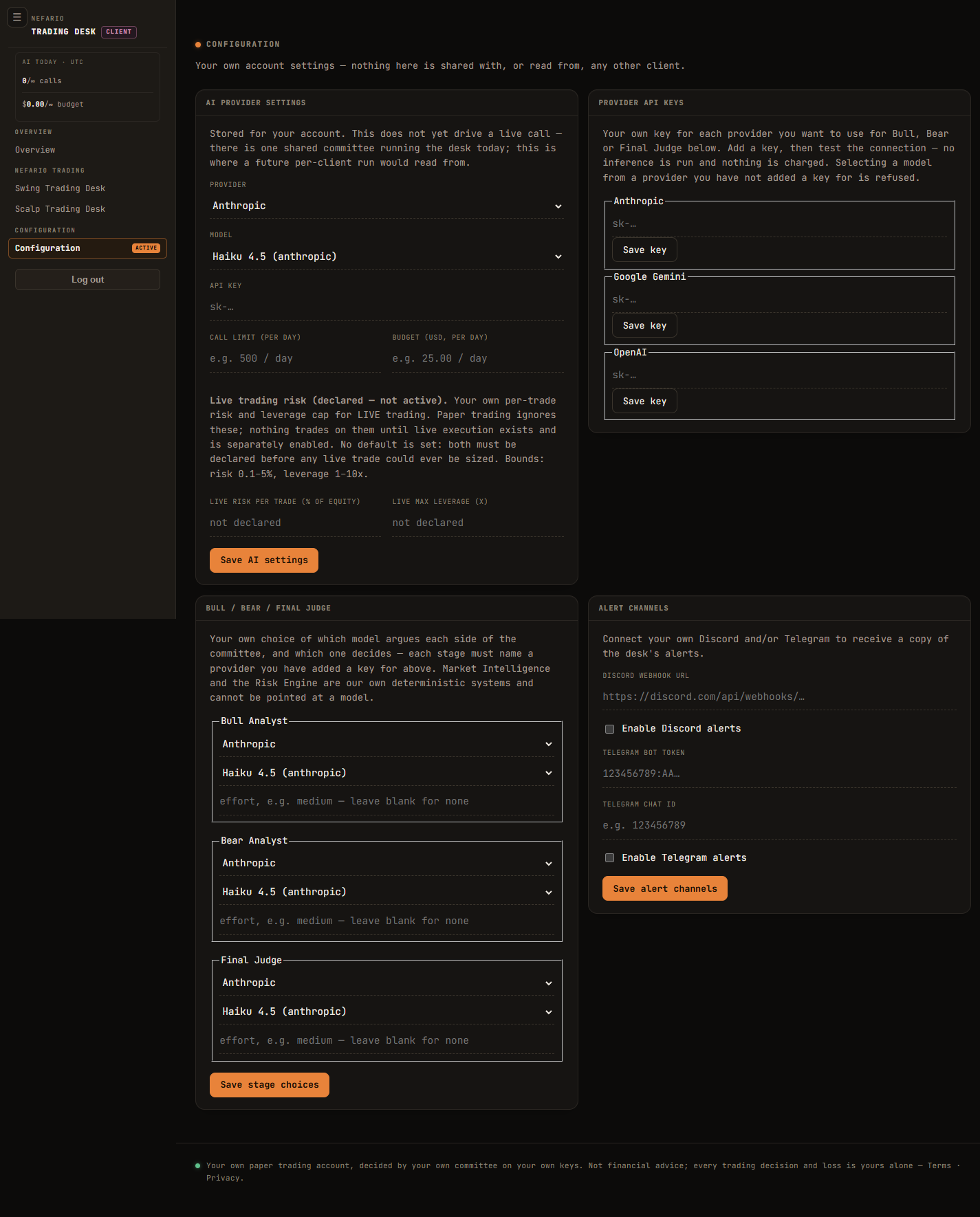
5a. Provider API keys (right-hand card)
- Get a key from the provider you want to use — Google Gemini (AI Studio), Anthropic or OpenAI. The key must have billing / credits enabled on the provider's side; a free key without quota returns “429” and your committee will produce nothing.
- Paste it into that provider's box and press Save key. It is encrypted at rest and never shown back to you.
- Press Test connection. No inference is run and nothing is charged — it only checks the key is accepted. Green means ready.
5b. AI provider settings (top-left card)
- Provider / Model — your default model.
- Call limit (per day) — the most committee calls your account may make per UTC day. One committee call = one market look (three model calls inside it).
- Budget (USD, per day) — the most your account may spend per UTC day, priced from the models' own token reports. When either limit is reached, your committee stops until midnight UTC — it never spends past what you set.
- Live trading risk (declared — not active) — your per-trade risk % and leverage cap for a future live account. Paper trading ignores these; nothing trades on them until live execution exists and is separately enabled.
Press Save AI settings.
5c. Bull / Bear / Final Judge (bottom-left card)
Choose which model argues each side and which one decides. Each stage must name a provider you added a key for. A good starting point: a fast, cheap model for Bull and Bear, and your strongest model for the Final Judge. Effort is the model's thinking level — leave blank if unsure. Press Save stage choices.
5d. Alert channels (bottom-right card)
Paste a Discord webhook URL and/or a Telegram bot token + chat id, tick Enable, press Save alert channels. From then on every decision, trade open and trade close on your account is delivered to you (section 9).
Checklist before the desk can trade for you: key saved ✓ · connection test green ✓ · call limit and budget set ✓ · stage choices saved ✓ · at least one alert channel ✓.
6. The trading desks
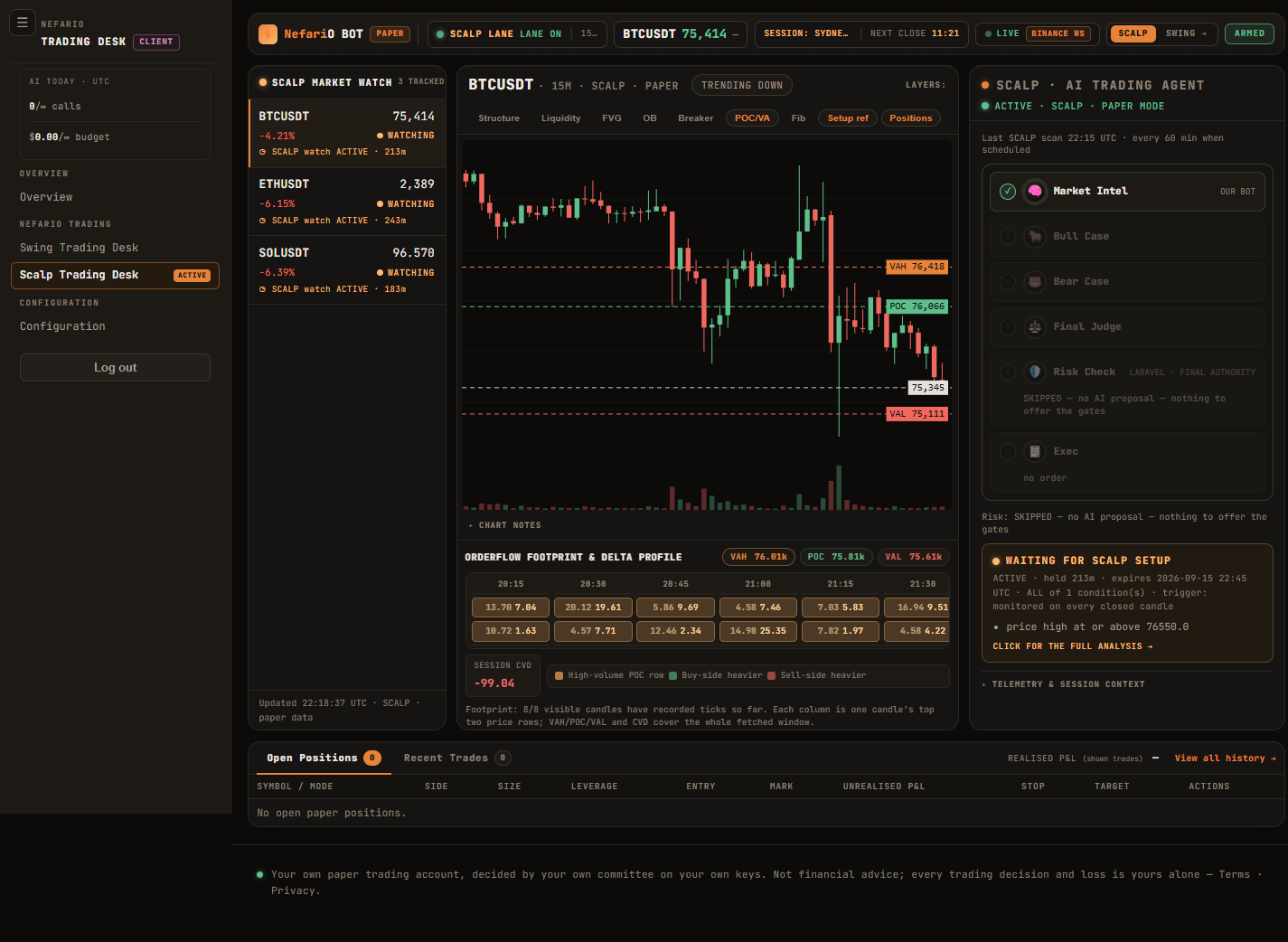
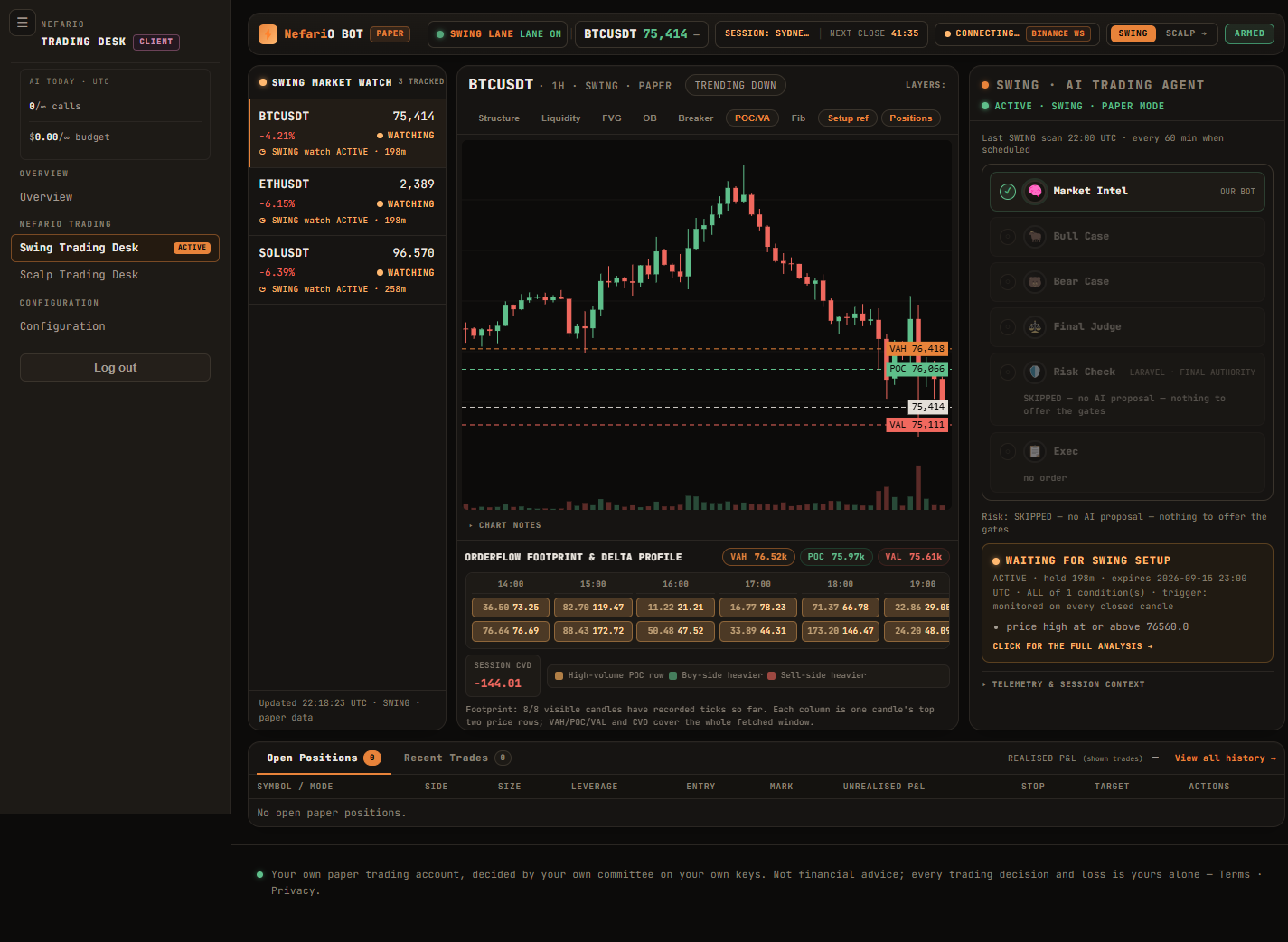
Both desks have the same layout; only the lane differs. Reading Fig. 8 left to right:
| Area | What it shows |
|---|---|
| Top bar | Lane on/off, the focused symbol and its live price, the current market session, countdown to the next candle close, the live-feed state (LIVE · BINANCE WS or LIVE · POLLED), lane switch, and the ARMED badge. |
| Market watch | Every symbol on your account with its live price, 24h change, and what the bot is doing on it right now — Watching, Analysing, LONG, SHORT, WAIT. Click a symbol to focus it. |
| Chart | 15-minute candles with toggleable layers: Structure (swings, BOS/CHoCH), Liquidity pools, FVG, Order blocks (OB), Breakers, POC/VA (the lane's own volume profile — the session for scalp, the current swing leg for swing; hover the button to see exactly which window), Fibonacci, Setup reference levels, and your open Positions with entry, stop and target lines. |
| Orderflow footprint | Tick-built buy/sell volume per candle for the last eight candles, the session CVD, and that window's own POC/VAH/VAL. A reading aid — not what the committee trades on. |
| AI Trading Agent | The six-stage pipeline for the focused symbol and its last scan: Market Intel → Bull → Bear → Final Judge → Risk Check → Exec, each with its state and detail. Below it, the current watch (section 7) and Click for the full analysis. |
| Bottom | Open positions with live mark, unrealised P&L and R, stop, target and your action buttons; Recent trades with realised P&L; View all history. |
7. How a decision is made — and why “WAIT” is normal
- Market Intelligence (ours, deterministic) writes the report: regime and structure on the execution and higher timeframe, the session's value area (POC/VAH/VAL), liquidity pools, order blocks, relative volume, liquidity-trap facts (sweeps, failed breakouts/breakdowns), order-flow delta, session context, and — on the scalp lane — any rapid move that triggered the look.
- Bull and Bear each build the strongest case for their side from that report, with an entry, an invalidation and a target.
- Final Judge decides LONG, SHORT or WAIT under strict desk rules — a counter-trend entry needs a confirmed reversal on a closed candle; a with-trend entry is taken at the retest, never at the extreme of a spike; a LONG or SHORT is filled at market immediately, so if the right entry is a retest away from price the judge answers WAIT and sets a watch.
- A watch is a precise, machine-checked condition (“price high at or above 76,550”, “failed breakdown has occurred”) re-checked free on every closed candle. When it triggers, a fresh committee runs. A watch is never an order.
- Risk Engine (ours, deterministic, final authority) sizes the trade from your paper equity and the judge's stop, applies every limit, and can refuse. Then Exec places the paper order.
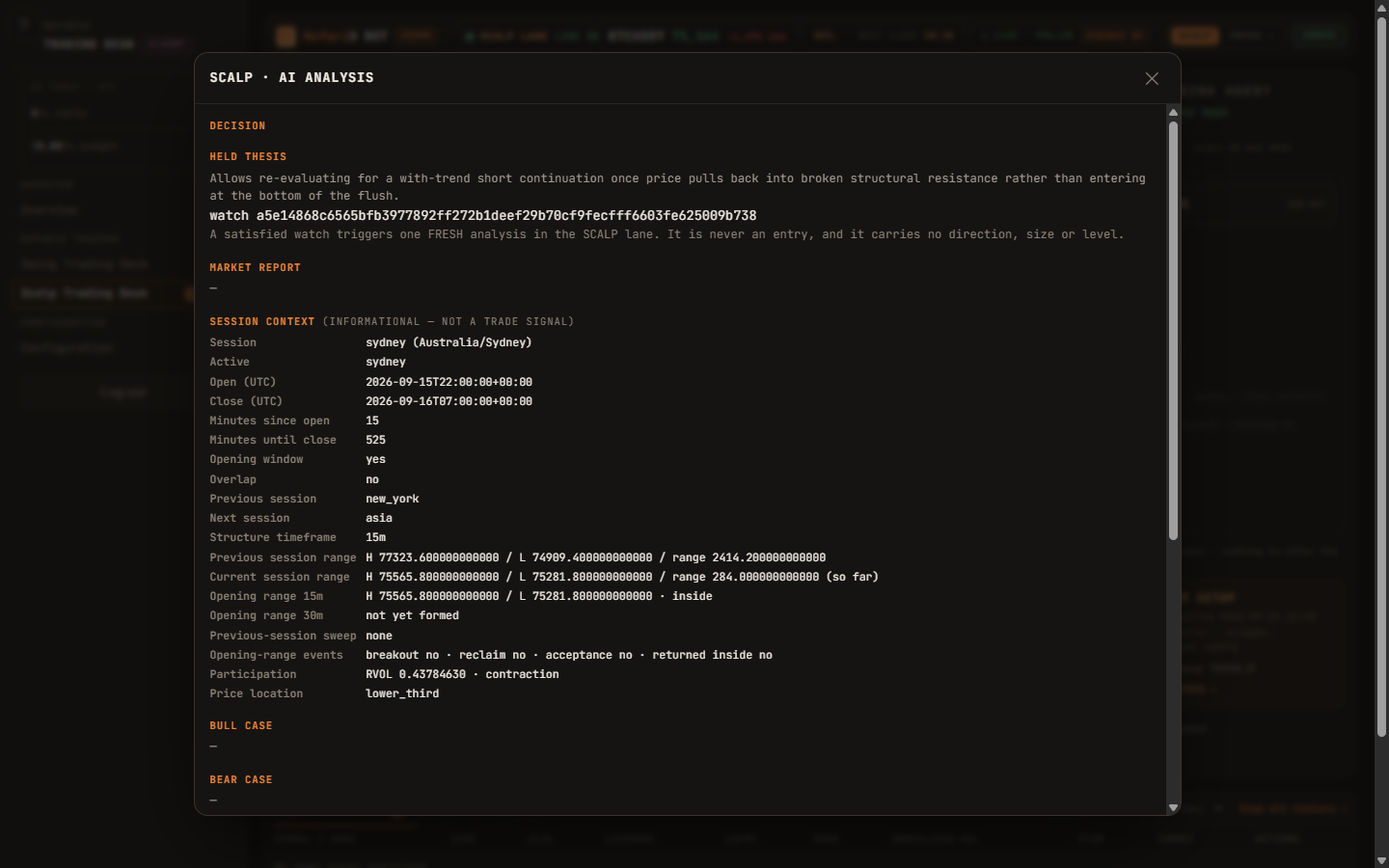
Most looks end in WAIT. That is the desk refusing to trade without a setup, not the bot being idle. A day with zero trades on a directionless market is the system working.
8. Positions and your controls
When a paper order fills, it appears under Open positions with the lane pill (SWING/SCALP), side, size, implied leverage, entry, live mark, unrealised P&L (also in R — multiples of your initial risk), stop and target. Every row marks live, whichever symbol the chart shows. Each position also carries an exit plan: the protective stop, the target, and a maximum holding window — all checked on every 1-minute close.
You may act on your own position at any time from the Actions column:
- Close — closes the whole position at the newest recorded 1-minute price. You type CLOSE to confirm.
- BE (break-even) — moves the stop to your entry plus the cost allowance; the target is unchanged.
- Edit — set a new stop and/or target, and optional partial take-profit legs (e.g. close 50% at a level, then move the stop to break-even).
Closed trades move to Recent trades with WIN/LOSS, realised P&L and the exit reason (stop loss, take profit, holding window, or your own close). The Overview page totals them since your approval.
9. Alerts you will receive
| Alert | Meaning |
|---|---|
| JUDGE DECISION | Your committee decided LONG or SHORT on a symbol, with its thesis, entry concept, invalidation and targets. |
| TRADE OPENED | A paper order filled on your book: direction, entry, stop, target. |
| TRADE CLOSED | Your position closed — by stop, target, holding window or your own hand — with the realised result. |
| PROPOSAL REFUSED | The judge said LONG/SHORT but the Risk Engine or the order gates refused it. Nothing was placed. |
| AI UNAVAILABLE | Your provider did not answer (a 503, a 429 quota error, an invalid key). No decision was made; the next look retries. |
| BUDGET | Your daily call limit or budget is reached; the committee pauses until midnight UTC. |
10. Daily limits and cost
Every AI call your committee makes is billed by your provider to your key. The platform never spends past the call limit and budget you set in Configuration: a call is reserved before it is made and settled to the provider's own token report afterwards. The sidebar AI today box shows your calls and spend for the current UTC day. As a reference, a full three-stage committee call on a fast model costs in the order of a cent or two; a busy day is a few dollars at most.
11. FAQ
“Test connection” fails
The key is wrong, or the provider has no billing/credits on it. Fix it on the provider's side and test again. Until it passes, your committee cannot run.
AI UNAVAILABLE alerts
Usually your provider's quota (429) or a temporary outage (503). The platform retries transient errors automatically and the next look runs on schedule; nothing is traded blind.
No trades today although the market moved
See section 7. The desk only trades a confirmed setup at an acceptable location; it will not chase a spike or short the bottom of a flush. WAIT with a watch is the correct answer more often than not.
“WAITING FOR SETUP” on a symbol
A watch is live: a precise condition is being monitored free on every closed candle. When it triggers, a fresh committee runs and you get a JUDGE DECISION alert if it acts.
Why paper and not live?
Paper uses real market data, real AI decisions and a real risk engine over simulated capital. Live execution is a separate, later capability that has to be built, tested on the exchange testnet and explicitly authorised — see the Terms. The risk % and leverage cap you declare in Configuration are what that future live engine will honour.
Who can see my data?
Only you and the operator. Your keys are encrypted, never shown back, and never used for any other account. Your paper book, decisions, alerts and results are yours alone.